Setting up Code::Blocks on WindowsBy Thomas CarrieroThis tutorial gives you easy-to-follow instructions, with screenshots, for setting up a compiler (the MINGW compiler), a tool that will let you turn the code that you write into programs, and Code::Blocks, a free development environment for C and C++. This tutorial explains how to install Code::Blocks on Windows 2000, XP, Vista or Windows 7. Note: the easiest way to get a compiler is to use Cee Studio, from our sponsor. It will let you run your code in your browser, without installing anything. If you're running Linux, go here to learn how to use GCC; if you're on OS X, go here to get set up using Apple XCode. Step 1: Download Code::Blocks
Step 2: Install Code::Blocks
Step 3: Running in Code::BlocksYou will be prompted with a Compilers auto-detection window: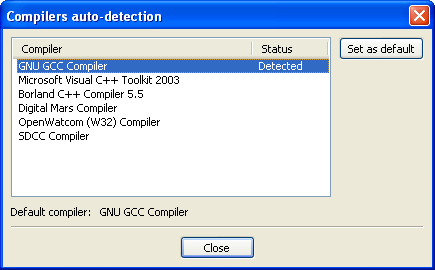
When you get the compiler auto-detection window, just hit OK. Code::Blocks may ask if you want to associate it as the default viewer for C/C++ files--I'd suggest you do. Click on the File menu, and under "New", select "Project..." The following window will come up: 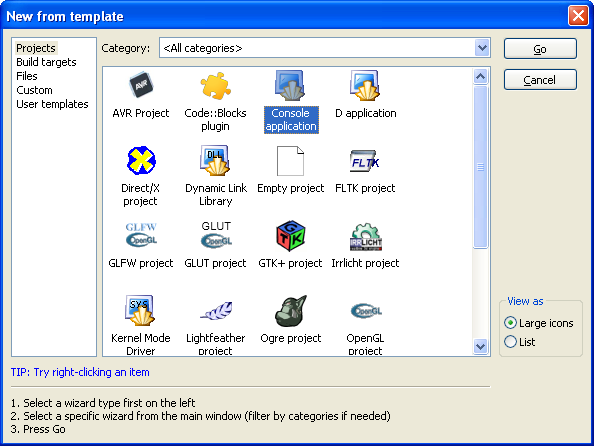
Click on "Console Application" and hit the "Go" button. Click next until you get to the Language Selection Dialog: 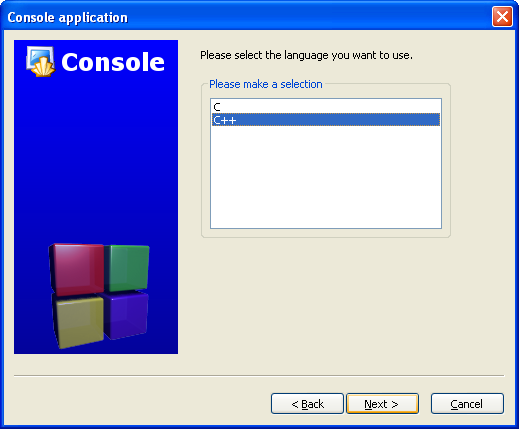
You'll be asked to choose whether you want to use C or C++. If you're not sure, use C++. Otherwise, choose based on the language you are learning. (You can find tutorials here on both C and C++.) After clicking "Next", Code::Blocks will then prompt you with where you'd like to save the console application: 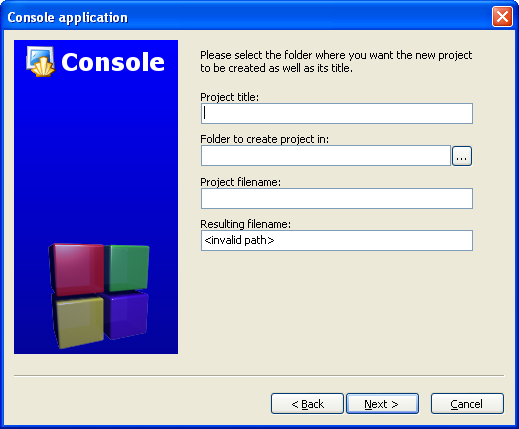
I'd recommend you put it in its own folder, as it may create several files (this is especially true if you create other types of projects). You will need to give your project a name, anything will be fine. Clicking "Next" again will prompt you to set up your compiler: 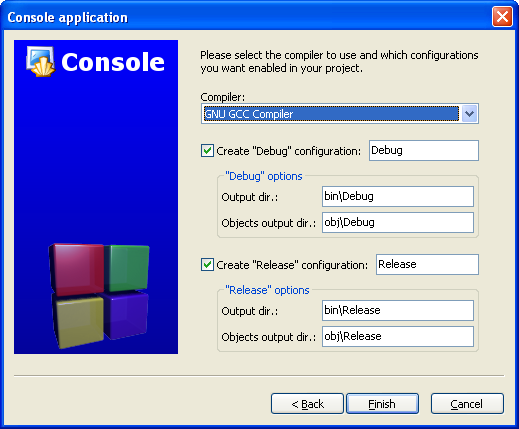
You don't need to do anything here. Just accept the defaults by hitting "Finish". You can now open the main.cpp file on the left: 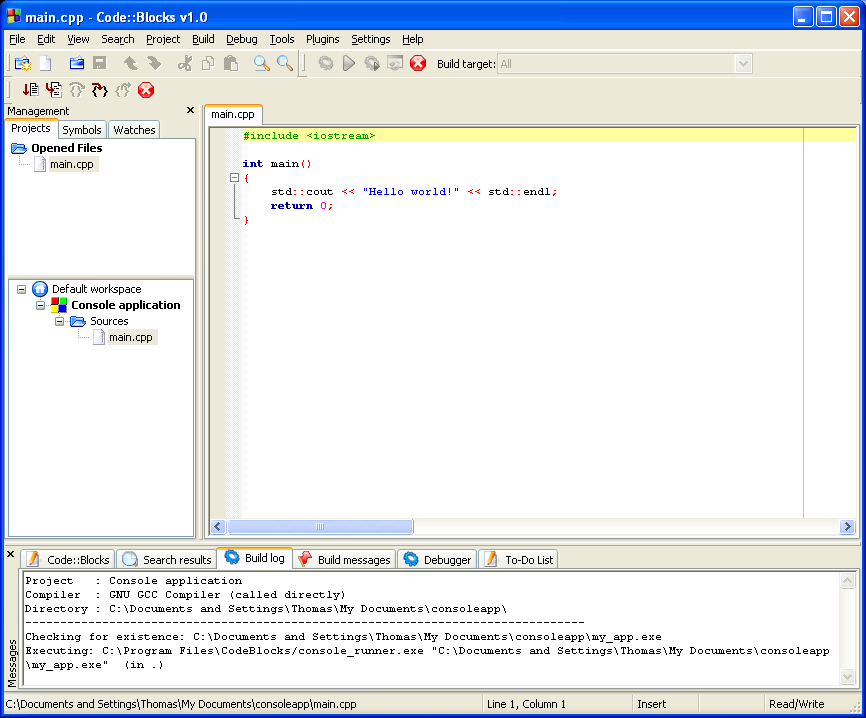 (You may need to expand the contents of the "Sources" folder if you don't see main.cpp.)
At this point, you will have your main.cpp file, which you can modify if you like. For now, it just says "Hello World!", so we can run it as is. Hit F9, which will first compile it and then run it. 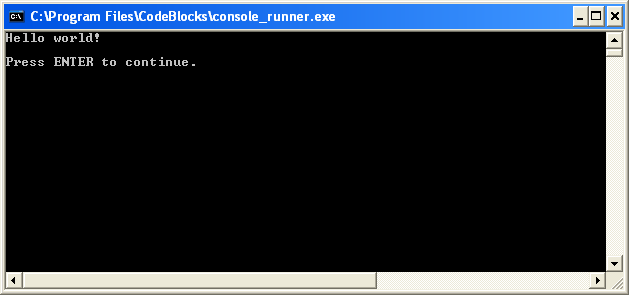
You now have a running program! You can simply edit main.cpp and then hit F9 to compile it and run it again. Now that you've finished setting your compiler up, it's time to learn to program: Intro to C++ (or if you're learning C, Intro to C). TroubleshootingThe most common error people see if things don't work is a message like "CB01 - Debug" uses an invalid compiler. Probably the toolchain path within the compiler options is not setup correctly?! Skipping..."First, make sure that you downloaded the right version of Code::Blocks, the one that included MinGW. If that doesn't solve the problem, it is likely a problem with compiler auto-detection. Here's how you can check your current "auto-detected" state. Go to "Settings|Compiler and Debugger...". Then on the left, choose "Global Compiler Settings" (it has a gear icon) and on the right, select the "Toolchain executables" tab. This tab has a "Auto-detect" button that you can use. That might fix the problem--if it doesn't, you can manually fill out the form. Here's a screenshot demonstrating what things look like on my system. Change the path marked "Compiler's installation directory" if you installed to a different location, and make sure everything else is filled in as shown. 
Once you've done that, try pressing F9 again to see if you get a running program. Continue to Intro to C++ (or Intro to C). |